
Researcher extra credit: Make your own maps
Help your patrons locate resources in your library with your own customized maps that are just a click away! To help you build these images, download our complimentary pack of library elements that you can use in the free-to-use Google Drawings to create your own library map—quickly and easily!
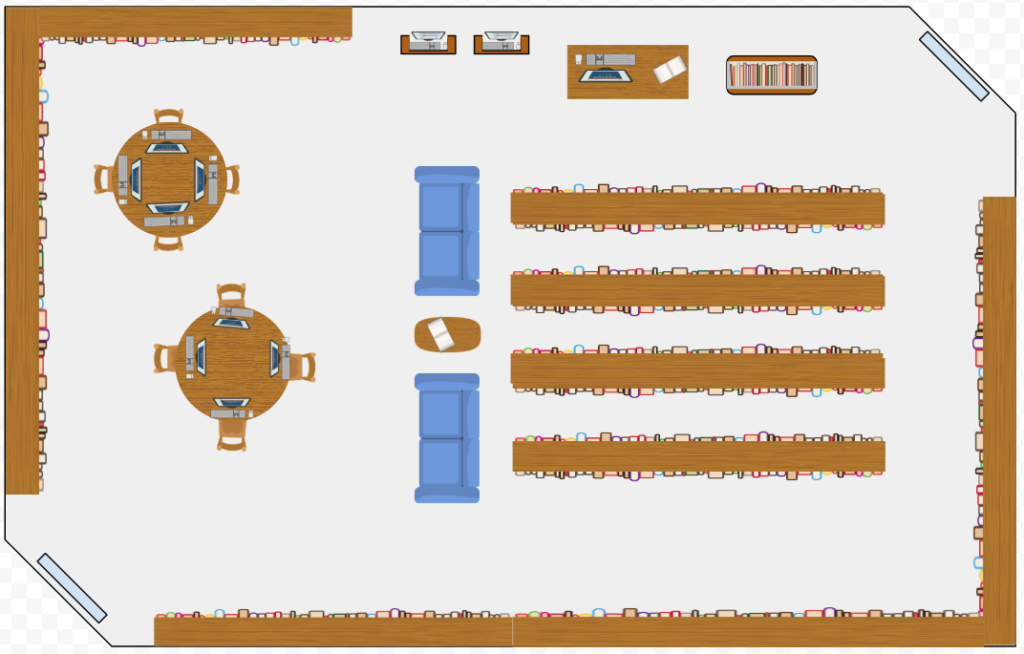
Making a map in Google Drawings
- Go to drive.google.com.
- Click New in the top left, and choose Google Drawings.
- Use the Shape tool to create the layout of your library floor plan, then click on the bucket icon to change the color. To make your library map more familiar to your patrons, consider choosing a color that is similar to your flooring.
- Drag and drop the library elements from the folder into the drawing. To rotate the images, click on the anchor on the top of each image, and drag it to the angle you wish. Clicking on any corner of the image will allow you to resize it.
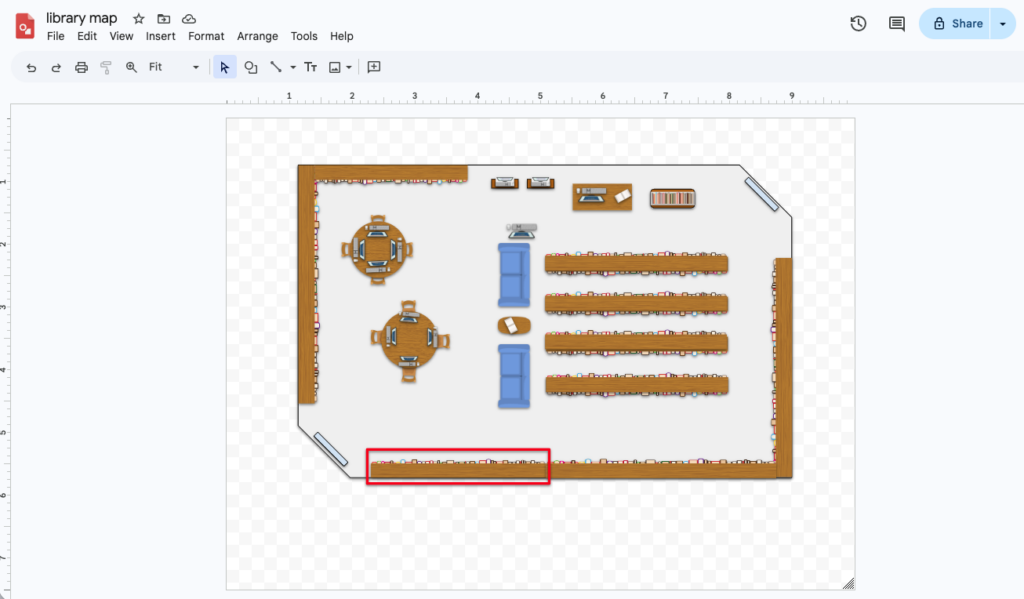
- Next, highlight the call number sections in your library. Use the shape tool to draw a rectangle around the shelf or area. It will initially fill it in with color, but that can be changed by clicking on the bucket tool and choosing Transparent. To the right of the bucket icon is the outline icon.
- Once you’re happy with the outline of the call number range, you’re ready to download the image. In the top left, click on the words Untitled drawing, and rename it to the call number range you just outlined.
- In the Google Drawings document (not the browser file menu), go to File, and choose Download as…, and click on either PNG image or JPEG image.
- Repeat this process by moving your outline around each of the shelves in your library map, renaming the file name at the top right, and saving them all separately.
- The next step is done within Alexandria. Under Builder, click on Maps. In the top right, click the + button (after unlocking), and enter your first call number range. Then, simply drag the corresponding library map image you created into the large area with the arrow, click Save in the top right, and you’re done! Repeat with all the saved maps and call number ranges.
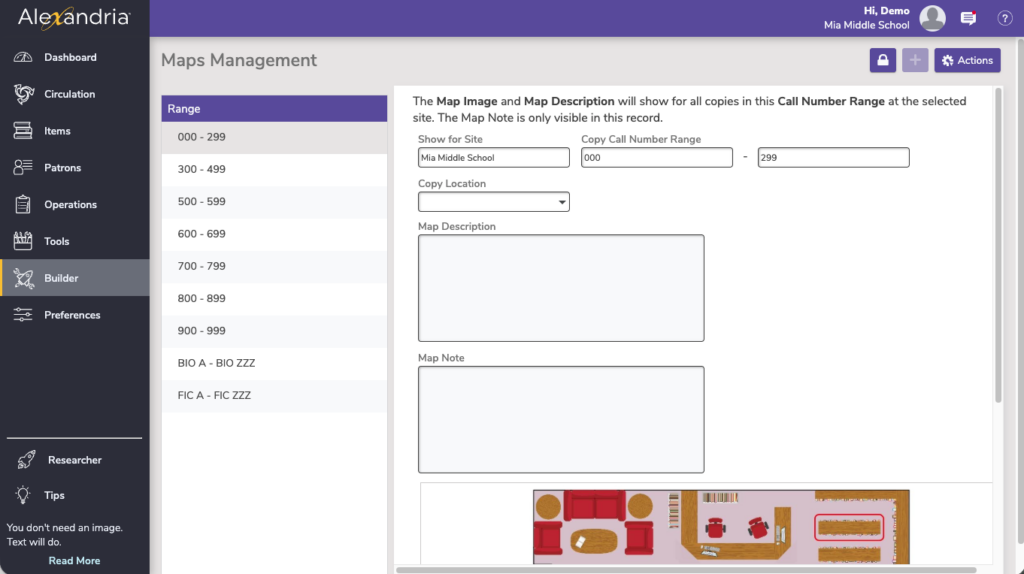
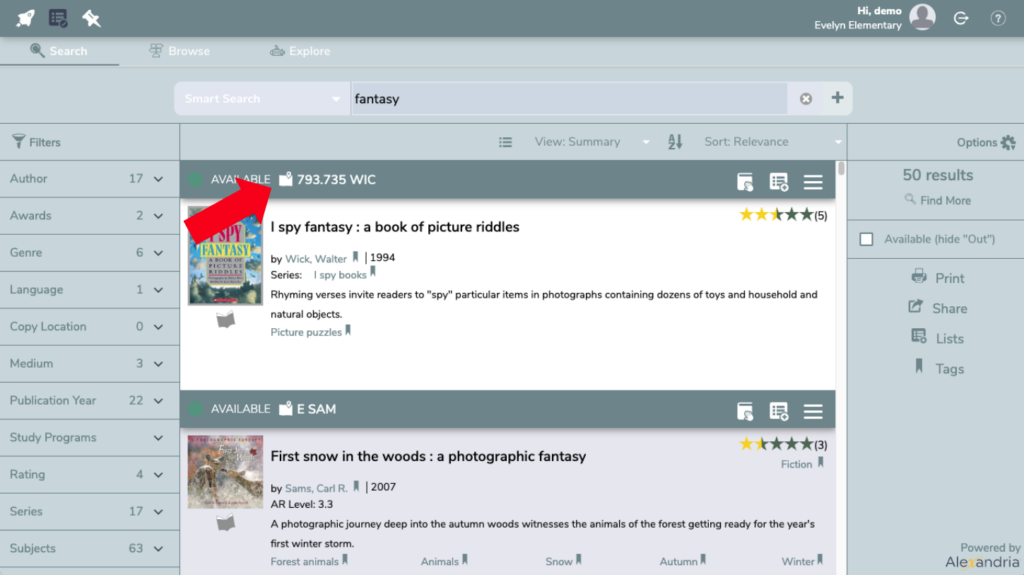
Finding Maps in Researcher
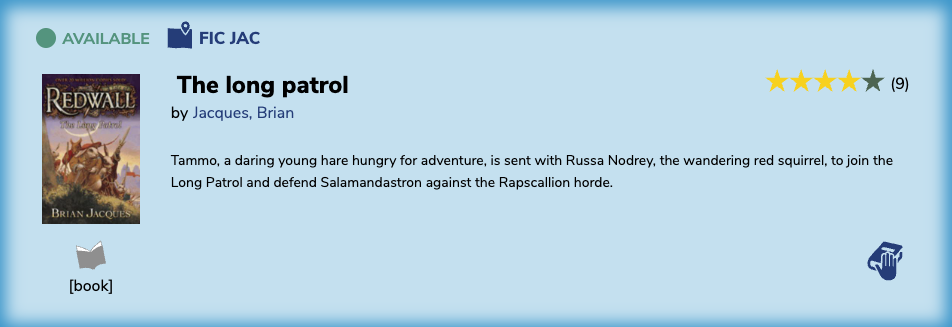
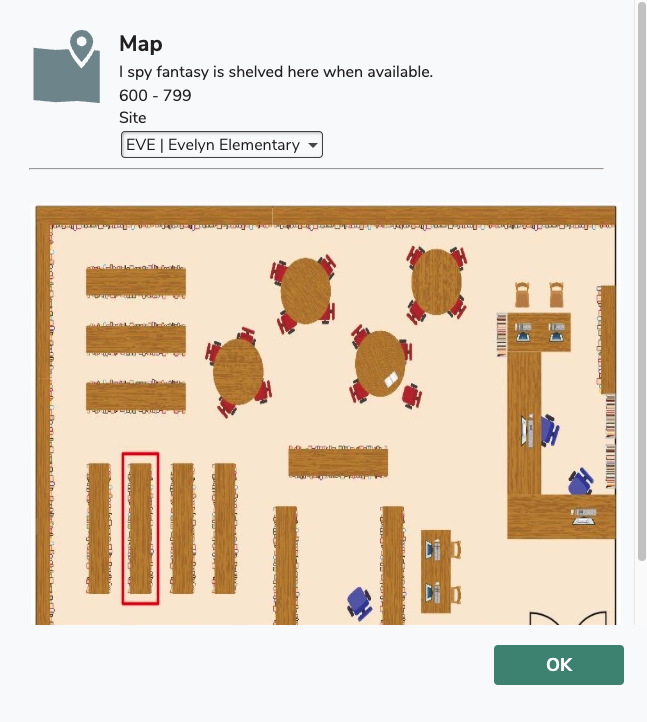
Wether in Search, Browse, Explore, or Scout, the map of your library is easy for patrons to locate. They just click on the map icon next to the call number, and the map will pop up with the location circled.
Extra tips
- You can change the colors of our library resources images in Google drawing by going to Format options > Recolor.
- Use the shape tool (or even chatGPT) to add in recognizable features (billboards, plants, etc) of your library to customize your map.
- Floorplanner is FREE to use for schools, and another easy tool to make a library map.
- Draw your library map and scan it in.
- Thanks to our user, Rachel for this idea!
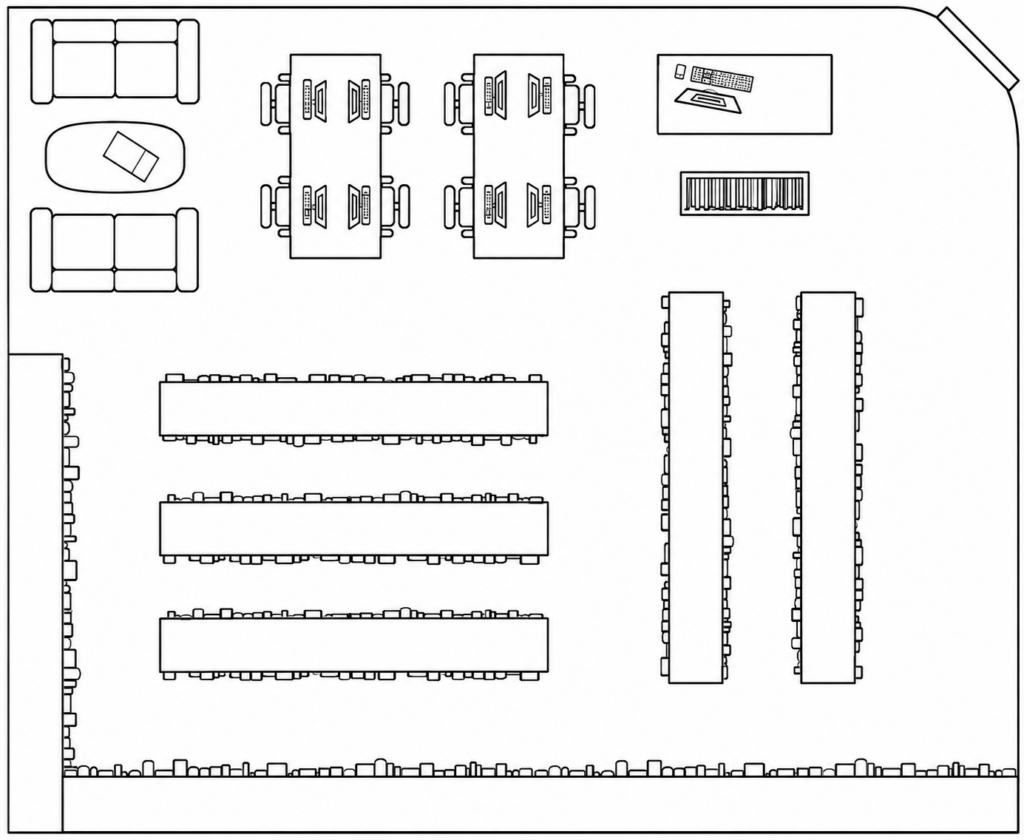
- Help your students get to know your library layout. Upload your library map to chatGPT to make it into a printable coloring page, or worksheet where they fill in the different sections.
Tell us in the comments below how you make your library maps!
0 Comments