
Display electronic resources: Policies
November 9, 2026
Miss Honey needs to create policies in Alexandria for electronic resources (so they show up as eBooks in Researcher), but she hasn’t explored Policies since it joined the Makeover. Even though the functionality is the same, the order has changed a bit. How can she create policies for eBooks so they display correctly in Researcher?
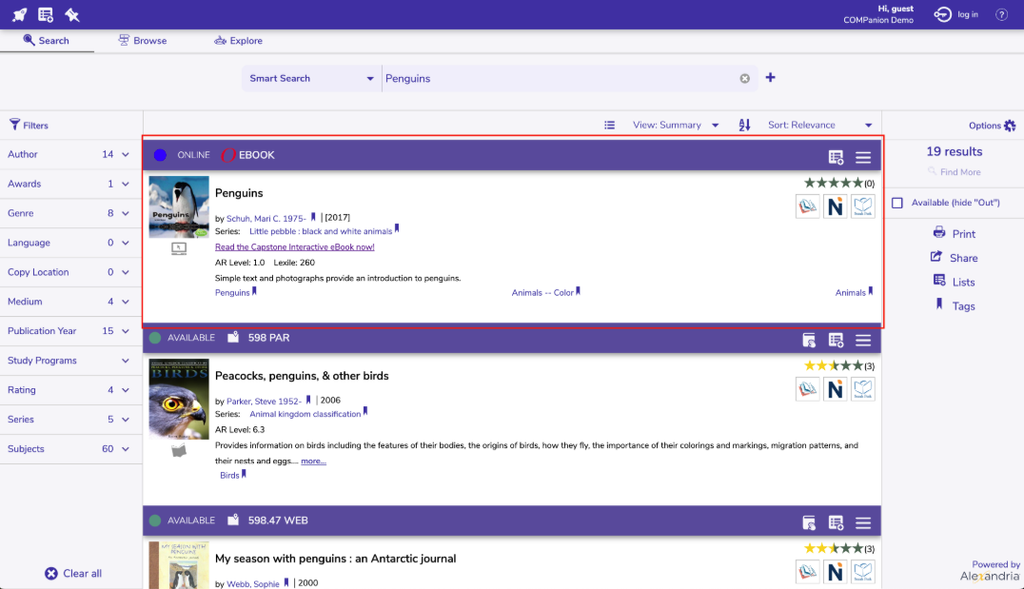
Creating an eBook policy
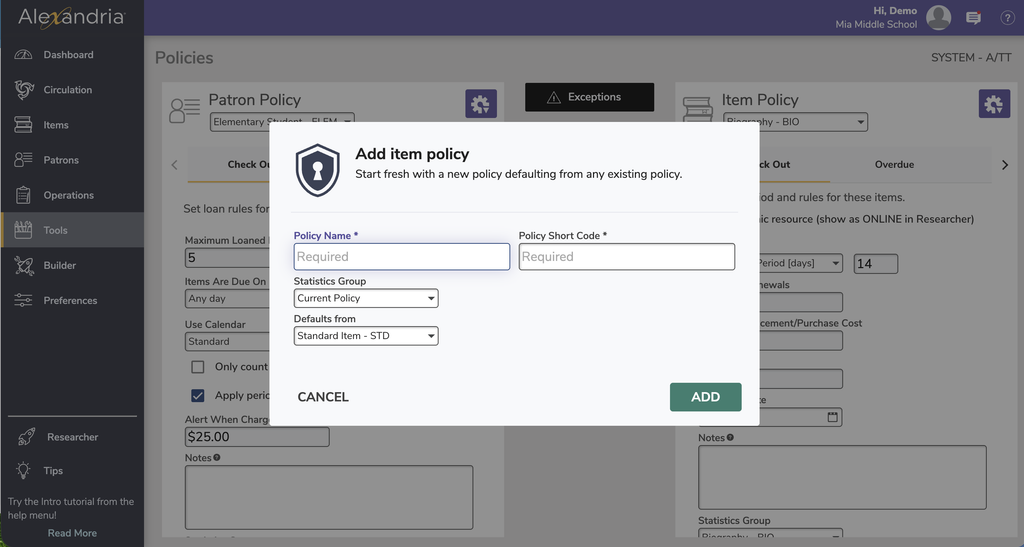
- Go to Tools > Policies.
- Click Add from the actions menu from Item Policies to the right.
- Enter the new item Policy Name (eBooks, for example), Policy Short Code (how the policy will show up on reports) and optional Statistics Group in the fields provided.
- Make a selection from the Defaults drop-down menu and click OK; the new policy will take its defaults from whatever is selected from this drop-down menu.
- Next, tab through the various Policies (Check Out, Overdue, and Other) providing appropriate values to the fields, drop-down menus, and check boxes in order to create your policy.
- On the Check Out tab, make sure that the Loan Period drop-down menu is set to No Loan Period and check the Electronic Resource box. Checking this box modifies the results in the Details list in the Researcher with respect to availability and allows more convenient access to the electronic resource (i.e. eBook).
- On the Other tab, make sure the Allow Hold Requests option is unchecked.
- When you have completed your new policy, click on the Save button.
Check out our Policies instructions for more information on creating and assigning policies, and read the best practices article linked below.
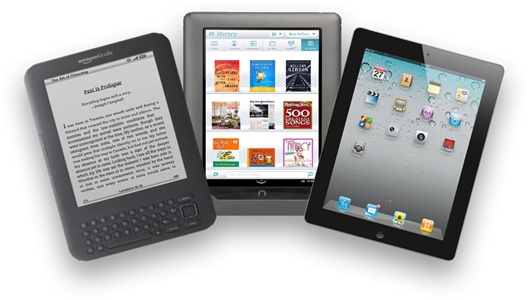
eBook Integrations
There are multiple services and add-ons we offer to enhance your Alexandria catalog, including Overdrive, Mackin, Boundless, and Capstone.
Check out all the add-ons available for Alexandria and contact us for more into!
0 Comments