
Spring cleaning: Account expiration dates
March 9, 2026
Do you have a lot of expired patron accounts cluttering up your Alexandria? Putting expiration dates on patron accounts helps you keep track of your patrons, keep your system organized, and makes it easy to remove expired patrons from your system. Let’s review all things expiration dates, so you can do some spring cleaning!

Add Expiration Dates
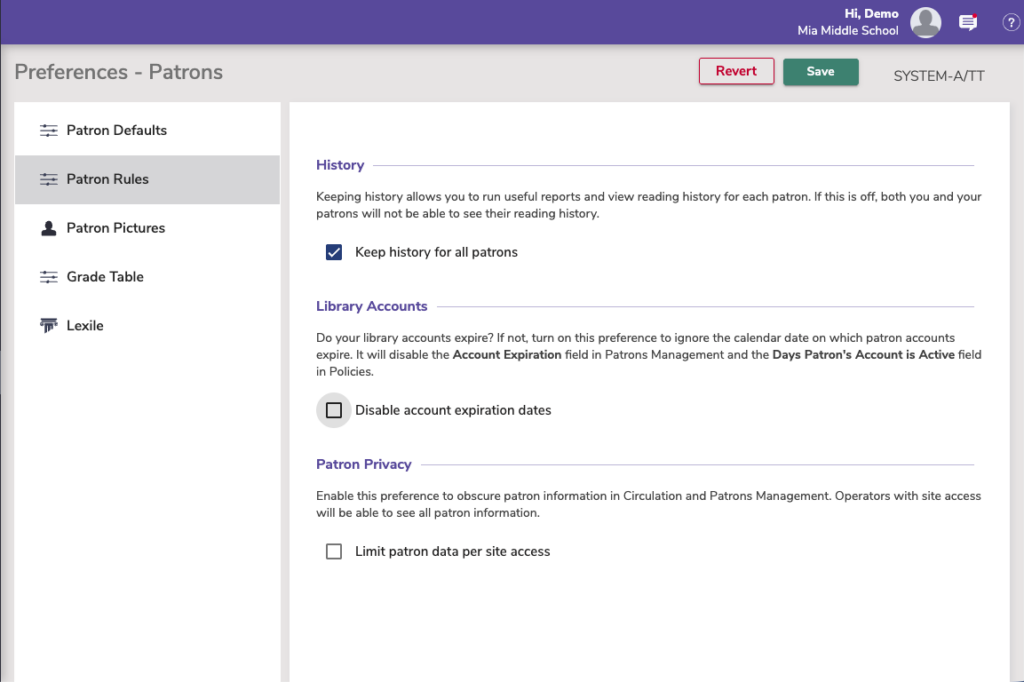
First, enable account expiration dates by going to to Preferences > Patrons > Patron Rules > then deselect Disable account expiration dates. You can adjust the account expiration setting in Policies, and specific expiration dates in the individual patron details.
Account Expiration Notices
Let your patrons know their account is expiring within a certain number of days using the Account Expiring Notice. If patrons come to renew their accounts before they have expired, go to the patron’s record and update the date. If the patron is already expired, you can make them current in Circulation and a notice box will appear, asking if you want to renew the patron.
Track Expiring Accounts
Want to know which of your patrons are expired? Go to Operations > Reports > Patrons > Patron Information, then select by patrons with a status of inactive.
Remove Expired Accounts
To remove expired patrons, go to Operations > Utilities > Patrons > Remove Patrons, and select by Inactive status. Want to only remove patrons that are severely expired? Use the “Accounts Expiring On” date range field in the utility.
 | Have questions? Reach out to our stellar support team at (800) 347-4942 · support@companioncorp.com for help! |
0 Comments