Clever
Managing school rosters can be a tedious, time intensive process, made even more difficult when you have to manage multiple educational programs separately. This is where Clever comes in.
Clever is a third-party service used by school districts to facilitate the secure transfer of student rosters between their school information system (SIS) and digital learning applications. Districts maintain complete control over their data, including what they send to Clever and how it is shared. Applications will only receive the data they need, nothing more. Clever only syncs roster data—no grades, attendance, health records, etc.—so you don’t have to worry about the wrong information getting in the wrong hands. It’s even FERPA compliant!
Our partnership with Clever can help you maintain consistent, up-to-date patron records by automatically syncing (importing) your school’s teacher and student rosters to Alexandria on a daily basis. When a student moves from one school to another or changes are made to their school record, the updated information will be synced with your Alexandria patron records, eliminating data entry errors that can occur when you have to update student records in multiple applications.
If your district hasn’t signed up for Clever yet, head on over to www.clever.com to learn more, or check out the Clever Help Center to get started.
Table of Contents
How does it work?
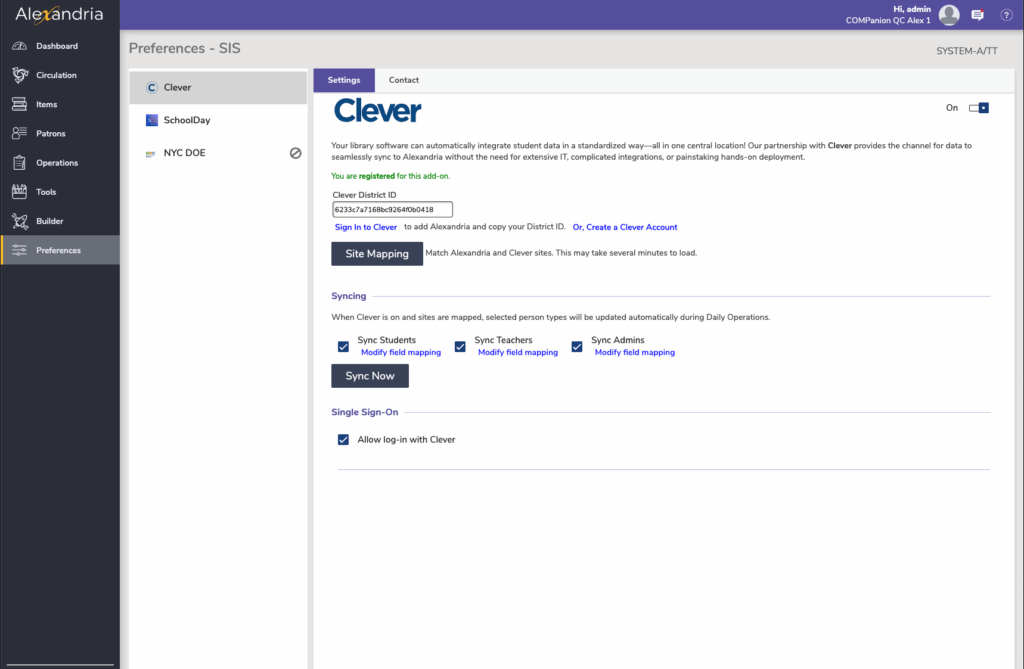
Your district data syncs with Clever, which securely shares authorized data with Alexandria. Changes made in your SIS are automatically synced to Clever and imported into Alexandria during Daily Operations, or you can manually initiate a full sync at any time from Preferences > SIS Integrations > Clever. During a sync, imported data overwrites matching patron fields in Alexandria; if no matching patron record is found, Alexandria creates a new record using the imported data and Alexandria default values.
How do I get started?
The first thing is to sync data from your district’s SIS with Clever; if your district is already set up on Clever, follow these steps to add Alexandria to Clever:
- Contact COMPanion to enable support for Clever integration.
- Add Alexandria to your Clever dashboard (learn more from Clever).
- In the sidebar, go to Applications > Add Applications, and then search for Alexandria.
- Select Share by District and share all district students and classes with Alexandria.
- Clever must be approved manually. Please allow 24-36 hours for us to receive and approve your request. We’ll notify you by email when this process is complete. Then, when you’re ready, either give us a call to walk you through the rest of the process, or proceed by following the steps to enable Clever.
- Locate your Clever District ID (find it from Clever).
- Enable Clever in Alexandria.
And that’s it! Alexandria will accept the request to receive data from Clever and begin automatically syncing roster information during Daily Operations.
Data Matching and Field Mapping
During the sync, Clever data is associated with Alexandria patrons by matching one or more key identifiers, including GUID, Student #, and Email. Blank fields are never used for matching.
Not all fields in your SIS are applicable to Alexandria, so not all student roster fields will be synced. Here’s a list of the fields in Alexandria and the corresponding field in Clever that are matched during import:
Admin/Staff Fields
| Alexandria | Clever |
|---|---|
| 1200 GUID | School/District Admin ID |
| 100 Barcode | Not Mapped/Optional mapping to staff_id |
| 1001 Community ID | Not Mapped/Optional mapping to staff_id |
| 1007 First Name | School/District Admin name.first |
| 1006 Last Name | School/District Admin name.last |
| 1019 Email | School/District Admin email |
| 1050 Site | Alexandria Site Code for the site record with the same GUID as Teacher school |
| 1026 Status | 1 indicates an “active” status and 4 indicates a “tobedeleted” status. These are equivalent to the “Active” and “Transferred” statuses in Alexandria. |
Admin/Staff Fields
| Alexandria | Clever |
|---|---|
| 1200 GUID | Teacher id |
| 1000 Barcode | Not Mapped/Optional mapping to teacher_number, sis_id, or state_id |
| 1001 Community ID | Not Mapped/Optional mapping to teacher_number, sis_id, or state_id |
| 1007 First Name | Teacher name.first |
| 1008 Middle Name | Teacher name.middle |
| 1006 Last Name | Teacher name.last |
| 1019 Email | Teacher email |
| 1052 Username | Teacher credentials.district_username |
| 1050 Site | Alexandria Site Code for the site record with the same GUID as Teacher school. |
| 1026 Status | 1 indicates an “active” status and 4 indicates a “tobedeleted” status. These are equivalent to the “Active” and “Transferred” statuses in Alexandria. |
Student Fields
| Alexandria | Clever |
|---|---|
| 1200 GUID | Student id |
| 1000 Barcode | Not Mapped/Optional mapping to student_number, sis_id, or state_id |
| 1001 Community ID | Not Mapped/Optional mapping to student_number, sis_id, or state_id |
| 1004 Location/Homeroom* | Clever Homeroom/Advisory* |
| 1007 First Name | Student name.first |
| 1008 Middle Name | Student name.middle |
| 1006 Last Name | Student name.last |
| 1045 Birthdate | Student dob |
| 1032 Sex | Student gender |
| 1011 Address | Student location.address |
| 1012 City | Student location.city |
| 1013 State | Student location.state |
| 1014 Postal Code | Student location.zip |
| 1019 Email | Student email |
| 1010 Level | Student grade |
| 1052 Username | Student credentials.district_username |
| 1050 Site | Alexandria Site Code for the site record with the same GUID as Student School. |
| 1026 Status | 1 indicates an “active” status and 4 indicates a “tobedeleted” status. These are equivalent to the “Active” and “Transferred” statuses in Alexandria. |
| 1049 Additional Contact | Parent/Guardian Name |
| 1054 Other Emails | Parent/Guardian Email |
 | *In order to get Homeroom in Alexandria (field 1004), you must be sharing Section > Subject > Homeroom/Advisory with the Alexandria app in Clever. |
Enabling Clever
Clever and SchoolDay/other SIS integrations cannot be enabled at the same time: When you turn the integration ON, Alexandria will disable the other services and clear all related identifiers. The Clever system and identifiers will then be initialized.
1. District ID
Enter your Clever District ID in your Clever Settings tab, then Save and Alexandria will validate with Clever.
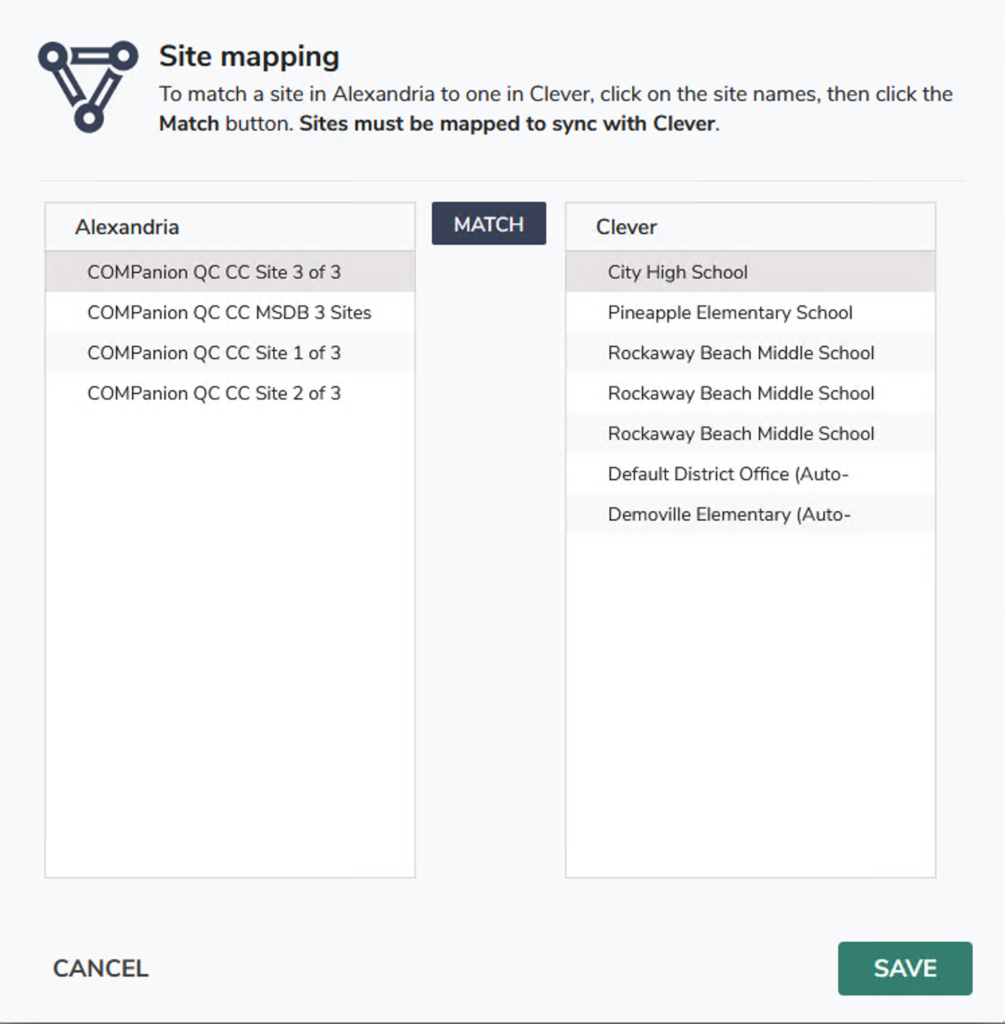
2. Site Mapping
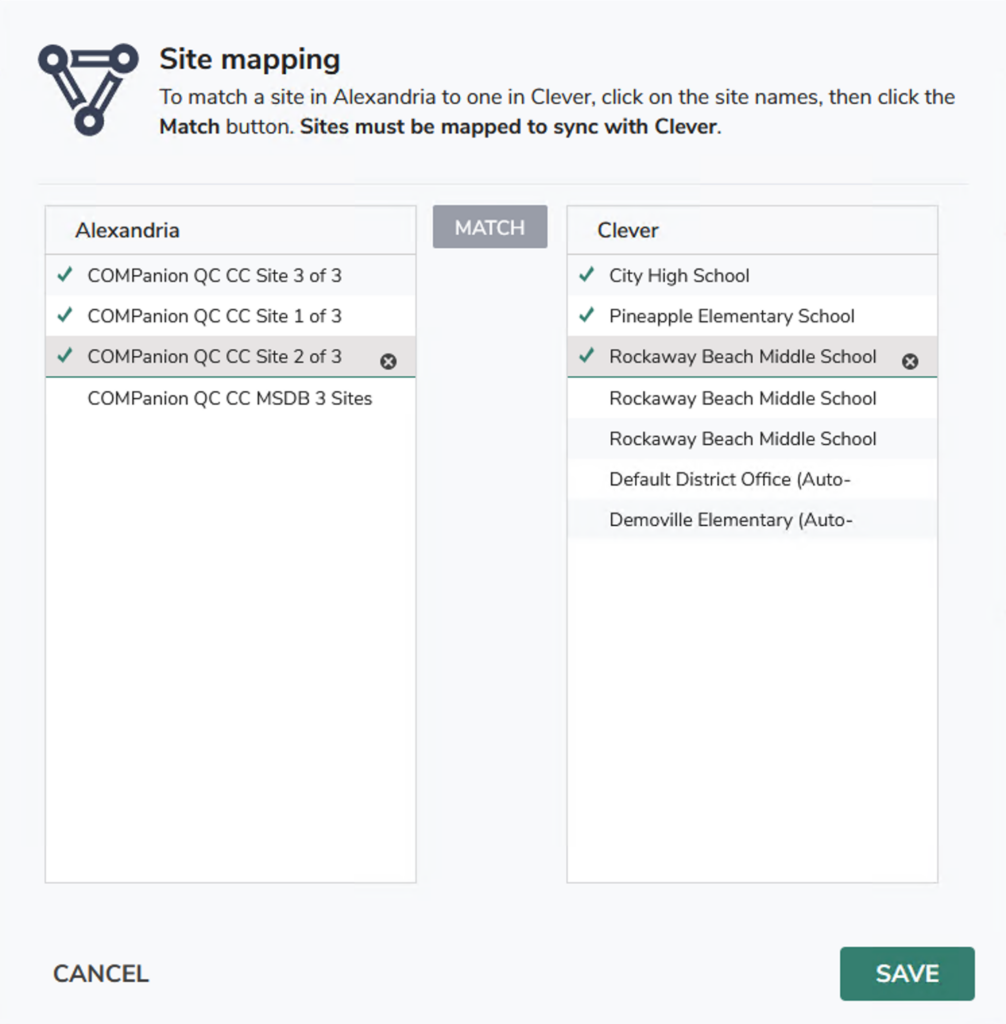
Your sites must be mapped to sync with Clever. Select a site from the Alexandria list on the left, then select the matching site from the Clever list on the right, and then click Match. Repeat this process with all of your sites. If a site has been matched incorrectly, select the site and click the X to clear the current match.
When you’re done matching your sites, Save your changes.
3. Syncing
Select if you want Student, Teacher, and/or Admin (Staff) data to be synced and updated during Daily Operations.
4. Modify Field Mapping (Optional)
Field mapping is automatically configured to match and overwrite fields in Alexandria with fields in Clever. By default, Alexandria’s Community ID and Barcode fields are not mapped with Clever. If you use these fields to identify patrons between systems, click Modify field mapping to customize how they’re mapped with Clever.
We will not attempt to match these fields unless you map them here.
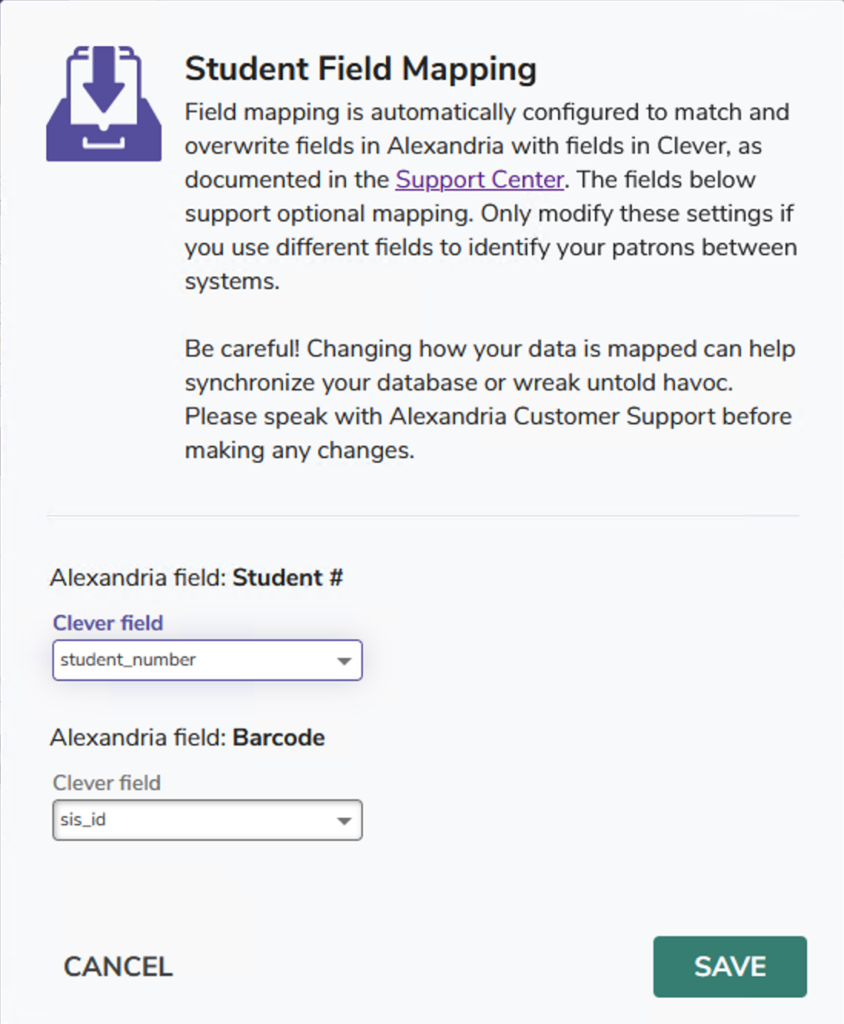
Student field mapping
Community ID
- student_number
- sis_id
- state_id
Barcode
- student_number
- sis_id
- state_id
Teacher field mapping
Community ID
- teacher_number
- sis_id
- state_id
Barcode
- teacher_number
- sis_id
- state_id
Admin (Staff) field mapping
Community ID
- staff_id
Barcode
- staff_id
5. Sync Now
Save your changes, then click Sync Now.
6. Utility Queued
The Clever Sync Utility has been queued. Check the status in Operations Management; once it’s finished, select the Clever Full Sync operation, and from there you can view and download the log.
The first sync (full sync) may take some time. Following that, changes sync automatically.
SSO (Single Sign-On)
If you use the Clever integration to sync Alexandria with your SIS, you can now turn on SSO for your teachers and students. Students can also log in to Alexandria directly from the Clever portal.
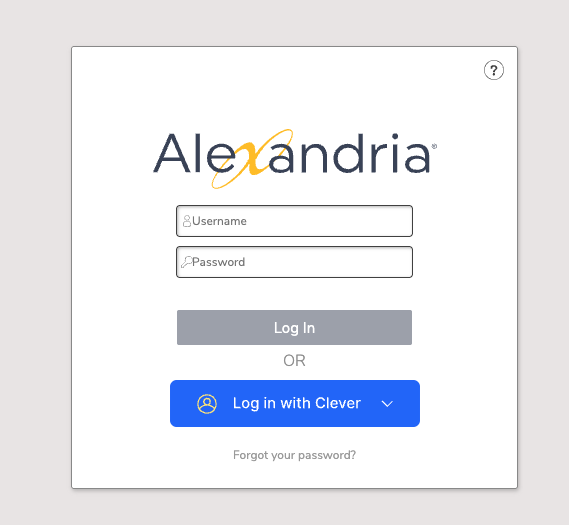
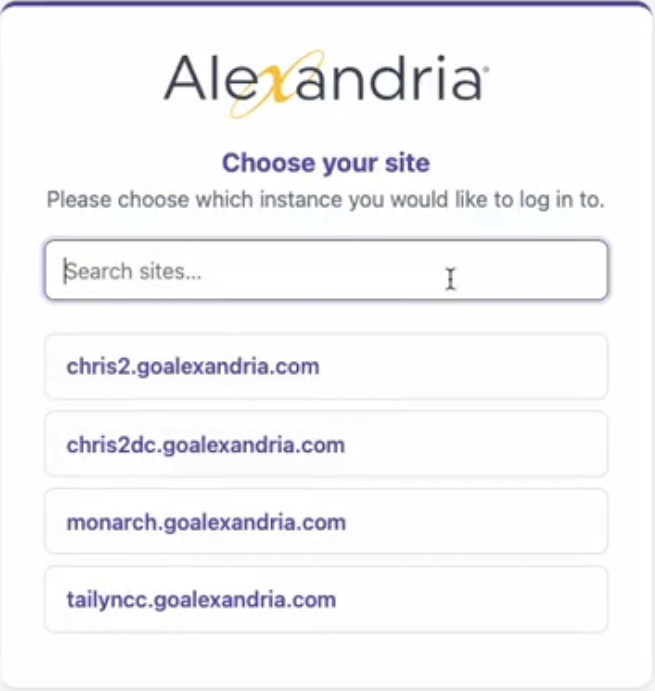
In Preferences > SIS Integrations > Clever, enable Single Sign-On by checking the box Allow log-in with Clever.
Frequently Asked Questions
What happens to a patron record in Alexandria when the student is removed from our school roster?
If a student record is deleted from your SIS, the patron record in Alexandria will be marked as Transferred. Your librarian can delete or update those records manually as needed or during end-of-year procedures.
Whom do I contact for Clever technical support?
Find answers in Clever’s Help Center, or contact them using the methods on that page.
When you have questions about the data in Alexandria, or the Alexandria preferences, contact us.