Monarch

Monarch® is a single Search Engine for ALL your Discovery Services and Digital Libraries that returns your search results in an single interface, categorized and summarized in a very intuitive experiences for you and your students!
Table of Contents
Monarch
The following is a brief overview of the program. Find out more about Monarch, or reach out to our sales team.
Admins, teachers, and students have different levels of access within Monarch, and use different areas of the program.
Teachers
Monarch equips teachers with the tools to discover and make use of educational resources all in one place, without logging into several different websites or databases.
Search
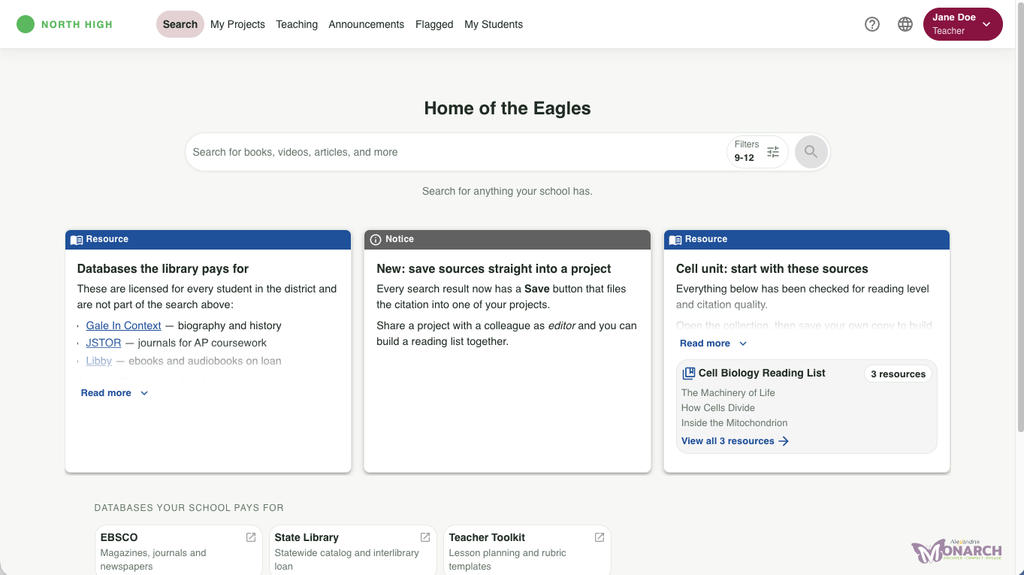
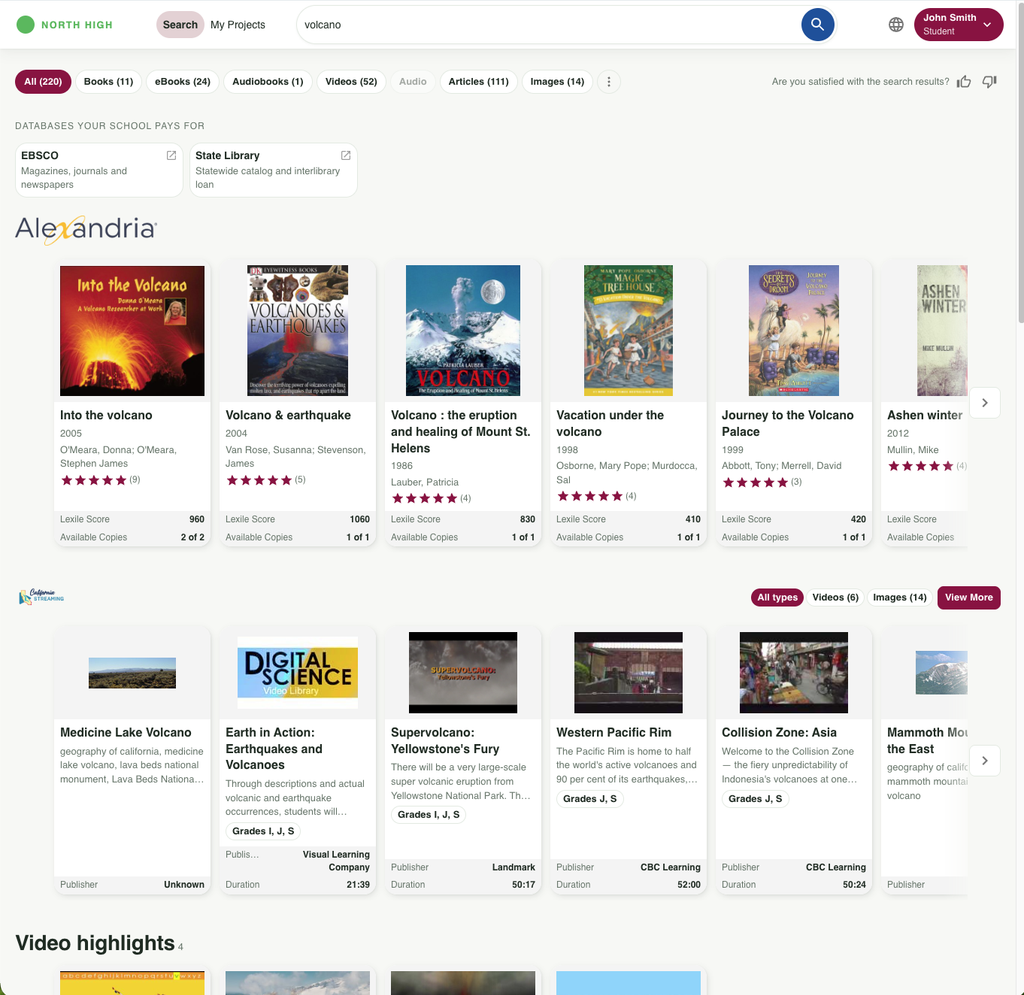
All digital resources show up in one place–library books, ebooks, videos, and more. See our ongoing list of integrations.
Use the top filters to sort by resource type and narrow search results.
Databases the school utilizes are listed with links to their individual websites.
Based on the settings of the school district, the search results will be automatically sorted by grade level for each student, and can also be modified to comply with state standards and content requirements.
My Projects
Teachers can create and assign projects to students, and students and teachers can save resources from search directly to ongoing projects. Projects can be collaborative or individual.
Based on the project settings, students and teachers can comment on resources, view and download citations, and add external resources. Projects are working bibliographies with sources and interactions from teachers and other students.
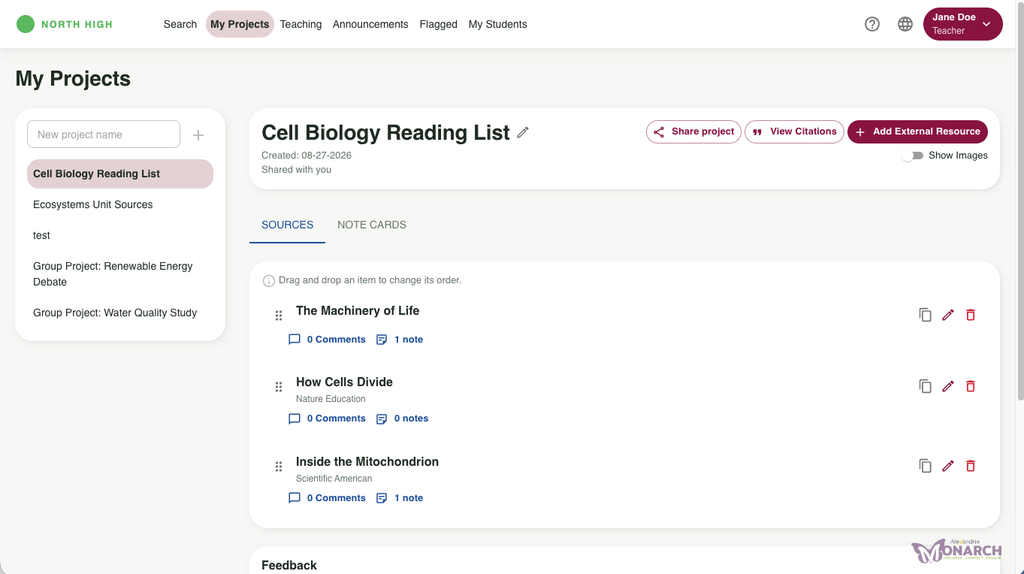
How to create a project
- Under My Projects, type the project name into the box that says “new project name” and click the plus + sign.
- Toggle your desired options for Show Images and Allow Comments.
- Add any sources or notecards.
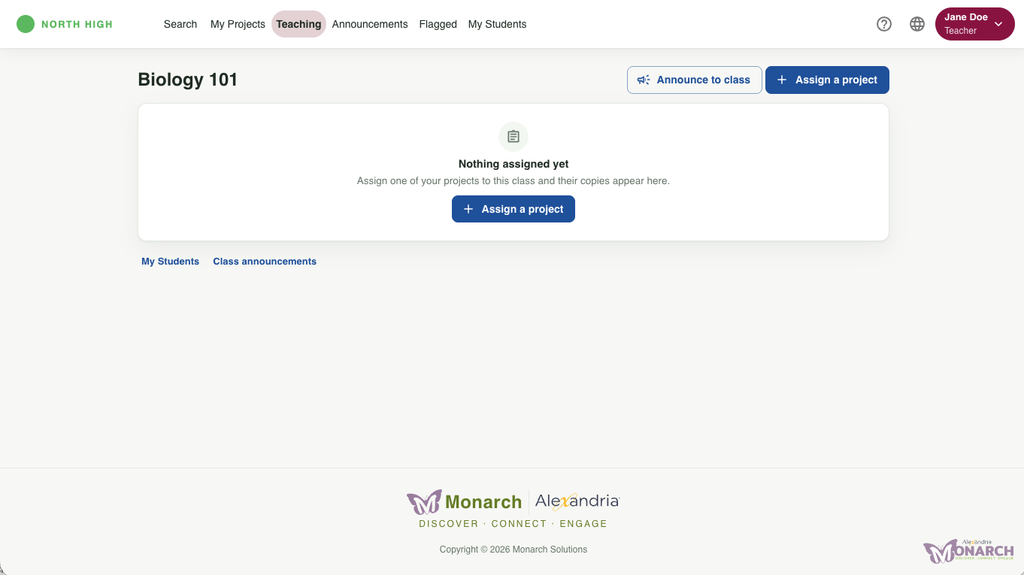
- Go to the Teaching tab and click “Assign Project” and select your new project from the drop-down.
- Assign to the entire class or specific students, and select if the project is collaborative or individual.
- Click Assign.
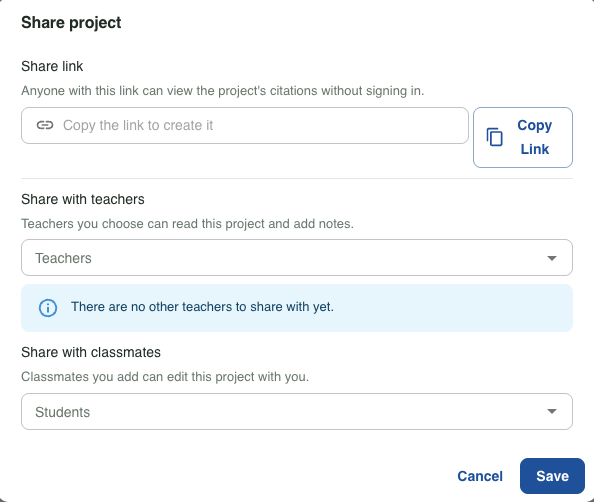
Share Project
Projects can be shared with teachers, classmates, or by link.
View Citations
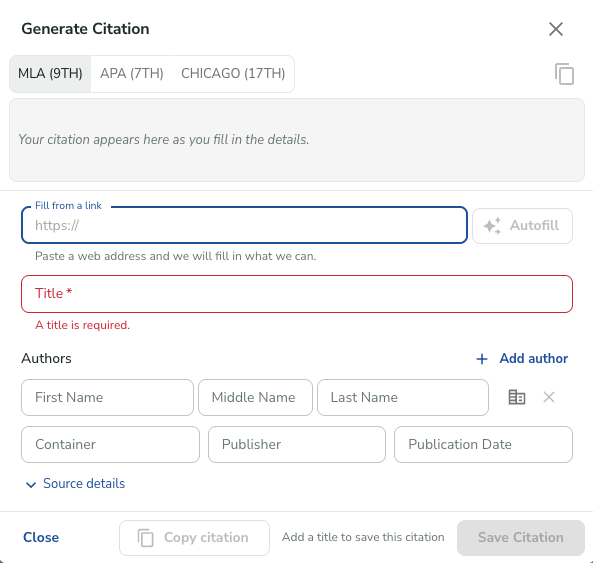
Copy and export project citations in MLA, APA, or Chicago style for easy bibliographies.

Add External Research
Add additional resources outside of Monarch via link.
Teaching
Teaching is where teachers keep track of classes and assign projects.
Announcements
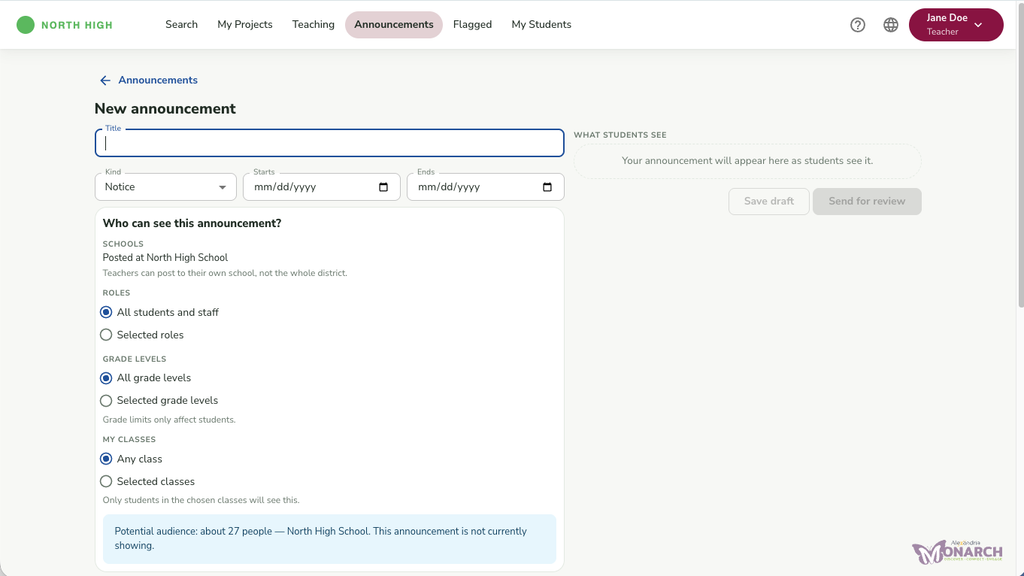
Post class announcements and important links, with a date range and settings on who will see the announcement.
Flagged
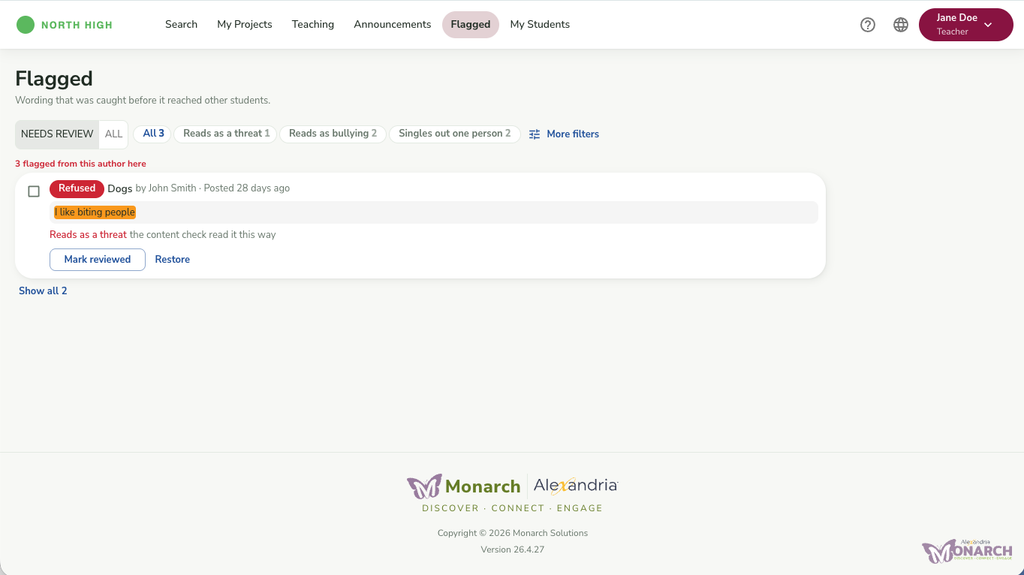
Student comments that are flagged for inappropriate content will show here for teachers to review before they post.
My Students
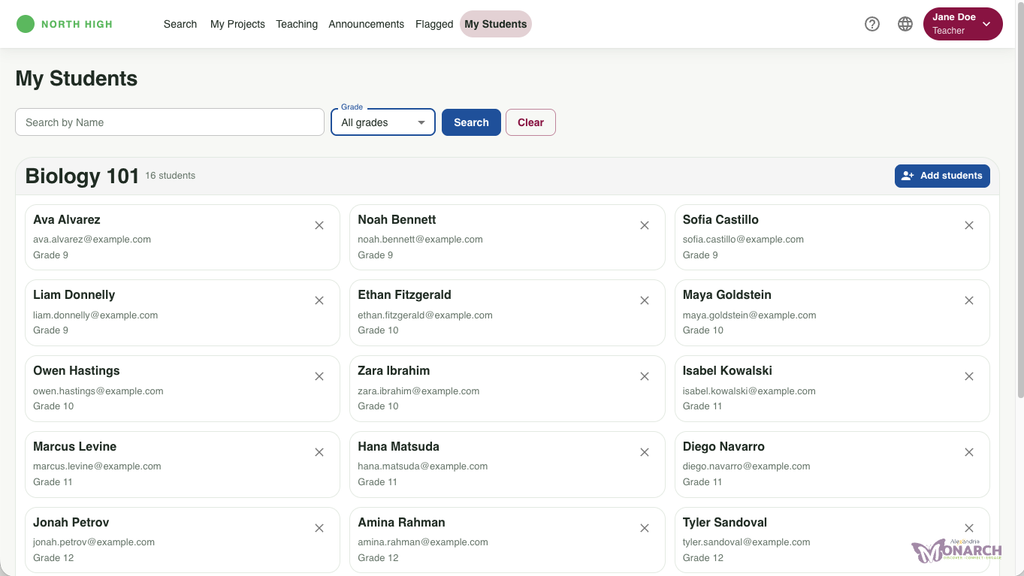
Teachers can view and search their students, grouped by class. They also add additional students using the “Add students” button in the right corner.
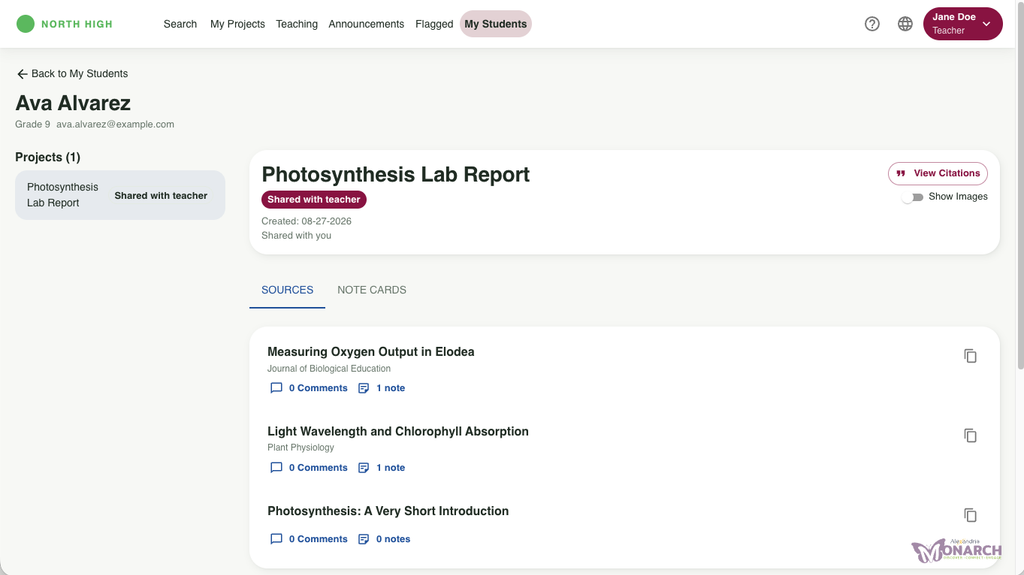
Each student profile shows shared projects, citations, and supports interaction via comments and notes.
Admins
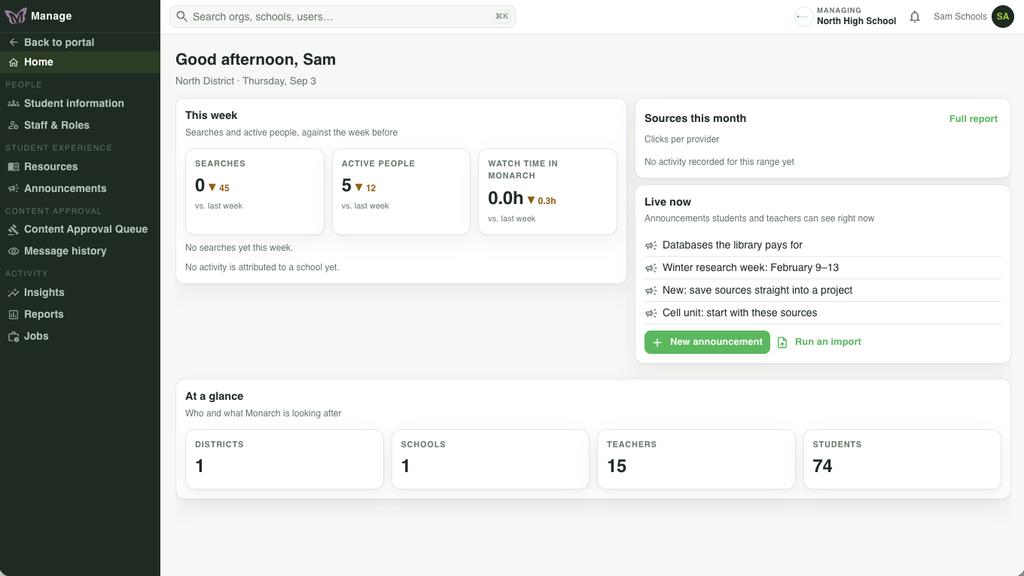
Org Admins, District Admins, and School Admins have different levels of access in Monarch, including the Manage portal, which teachers don’t have access to.
Manage
Admins can manage Student and Staff information, add district-approved material under Resources that become searchable in Monarch (like lesson plans for teachers or local historical documents), view statistics under Insights, customize appearance and branding of your Monarch sites, create a Monarch search widget, and more.
Library Preferences
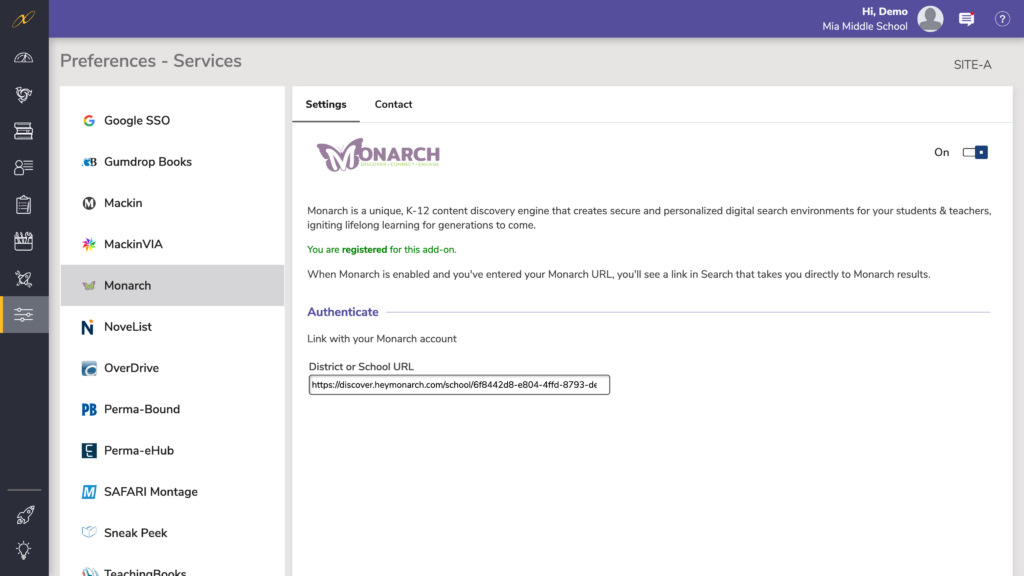
Enable Monarch in Preferences > Services > Monarch by turning the toggle to On.
When Monarch is enabled and you’ve entered your Monarch URL listen on the preferences page, you will see the link in your Search.